Case Manager
Who you are
You are the single client-facing role and the coordinator of every file. You capture and qualify leads, talk to clients, gather requirements, produce quotations, assign and route work, record payments, and handle hand-offs, cancellations and post-delivery reviews. If a client needs to talk to the consultancy, they talk to you.
What you can do
- See and manage every case you own, across the whole work queue and pipeline.
- Create a new file (a lead), and create cases on behalf of a client.
- Build and send quotations, record manual payments, and view invoices and the money side of a file.
- Schedule field visits and assign a surveyor.
- Add custom checklist items to a case, on top of the ones the report format requires.
- Message the client and the field surveyor.
- Apply tags to organise your queue, and transfer a case to another Case Manager.
What you can’t do
- You don’t author the valuation or the report — that is the Design and Principal Engineers.
- You don’t authorise (sign) reports.
- You can’t change firm-wide configuration — services, pricing rules, branding. That is an Admin.
- You never see commission. You see a case’s price because you negotiate it; commission is a separate and narrower permission.
Getting in
Sign in at /login. Your acting role — Case Manager — shows in the
top-left. Dates appear in Bikram Sambat and Gregorian together.
Your screens, step by step
1. Work Queue — your home base
The Work Queue is a dense, sortable list of every active file with its stage, service level, tags, assignee and value.
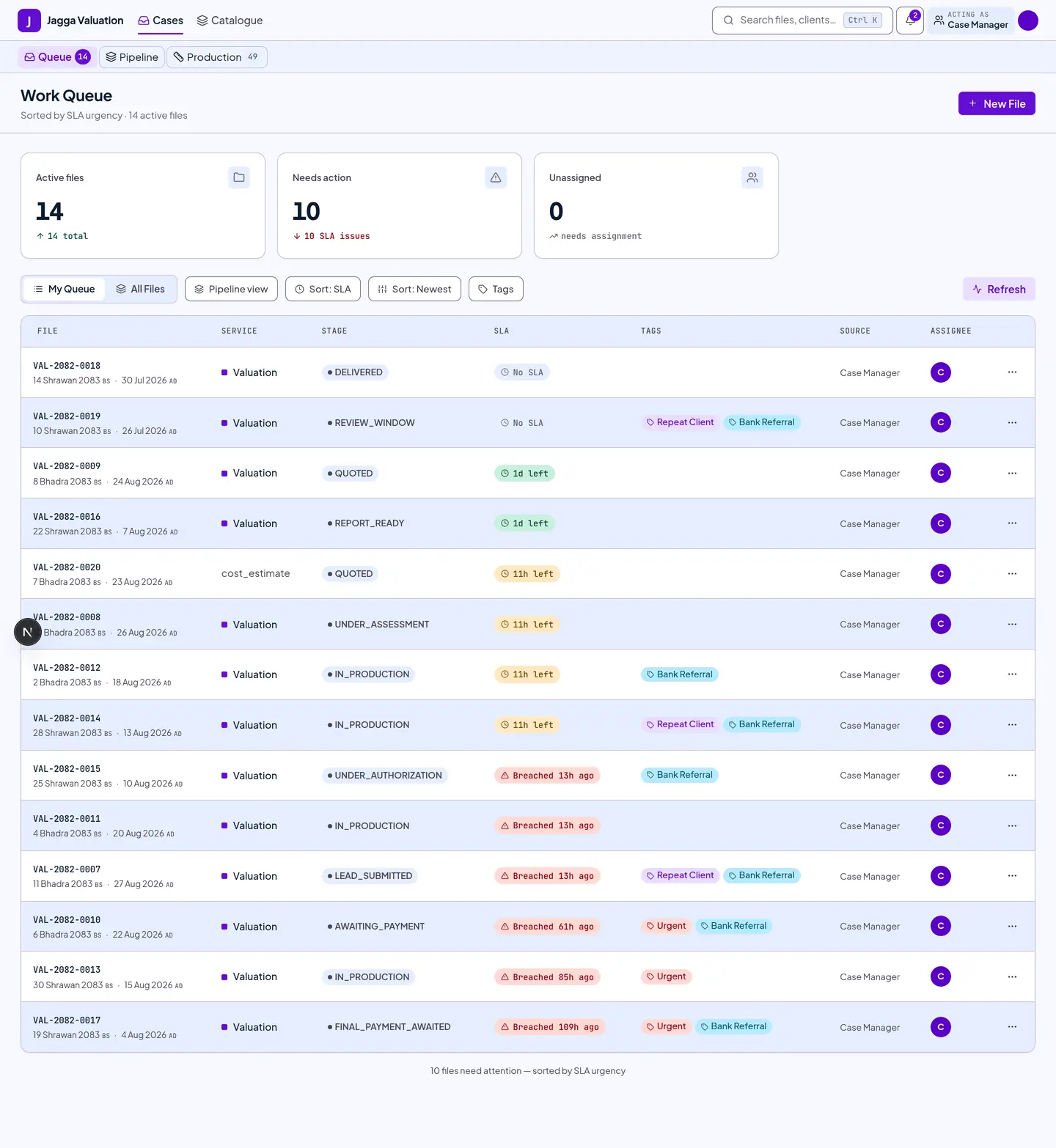
- The strip at the top shows Active files, Needs action and Unassigned counts.
- Each row shows the reference number, the service, the stage, a service-level chip (green means on time, red means the target was missed), tags, and the owning Case Manager.
- Use My Queue / All Files, the sort controls and Tags to focus the list.
- Press + New File (top-right) to capture a lead: choose the service category and sub-type, the property type and the lead source.
- Click any row to open the case.
2. Pipeline — the same work as a board
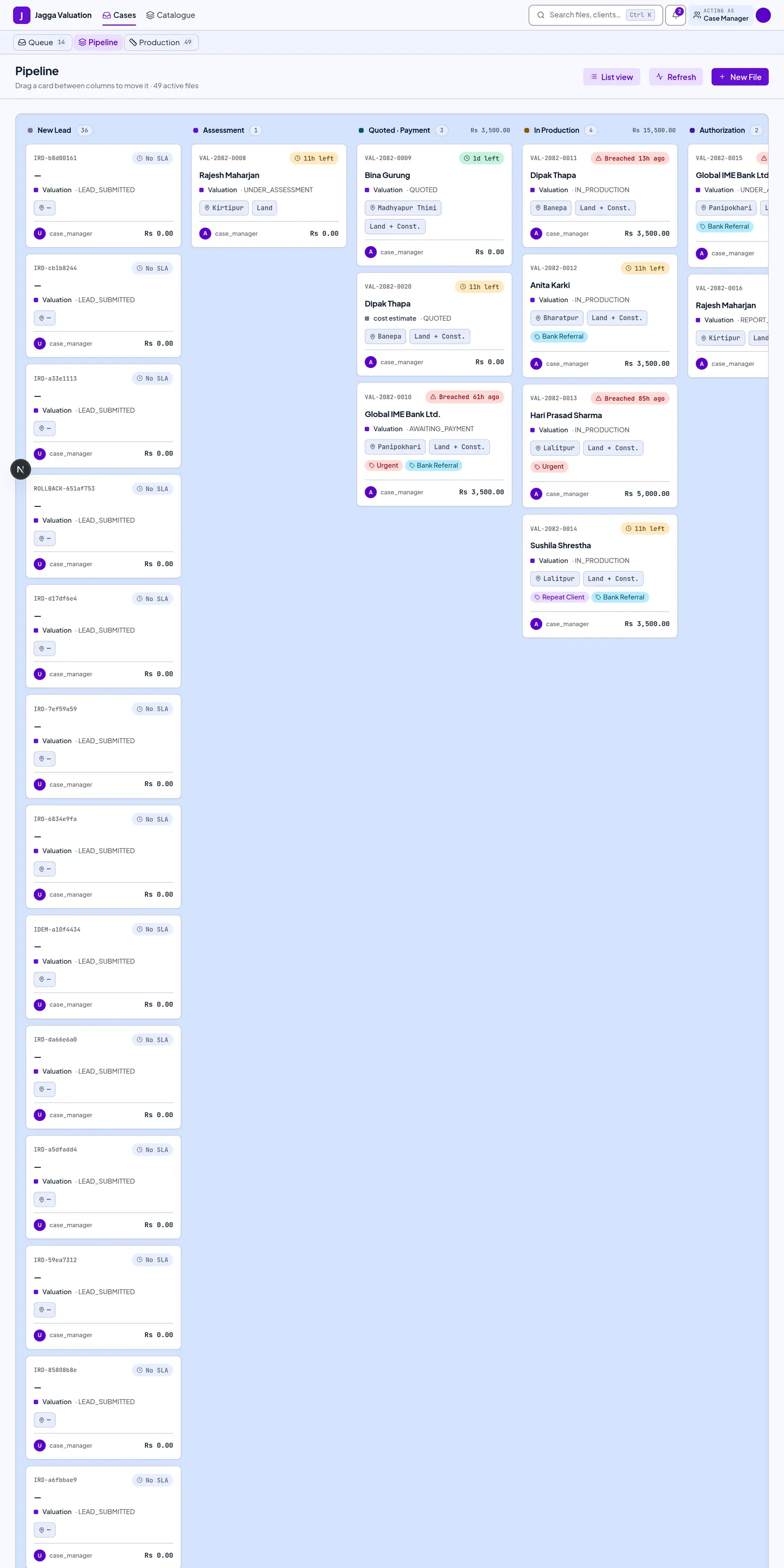
Switch to Pipeline to see the same cases grouped by stage as a board. It is the fastest way to see where work is piling up.
3. Payments — the money on a file
The Payments screen shows what has been paid and what is due, milestone by milestone.
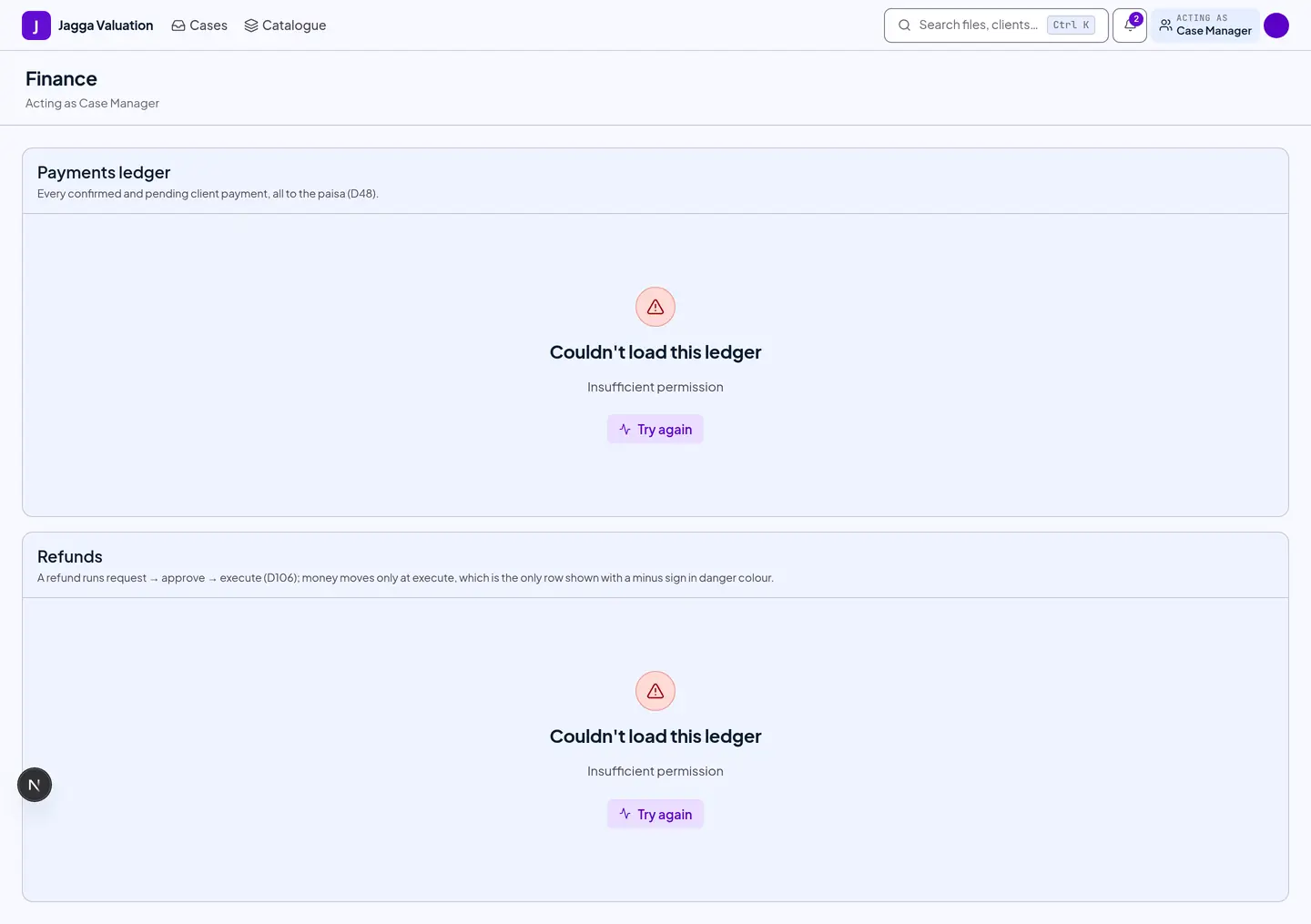
- Record a manual payment — cash, bank transfer or QR — against a milestone.
- Amounts are exact to the paisa, and the advance and final milestones always add up to the quotation total.
4. Notifications — what changed
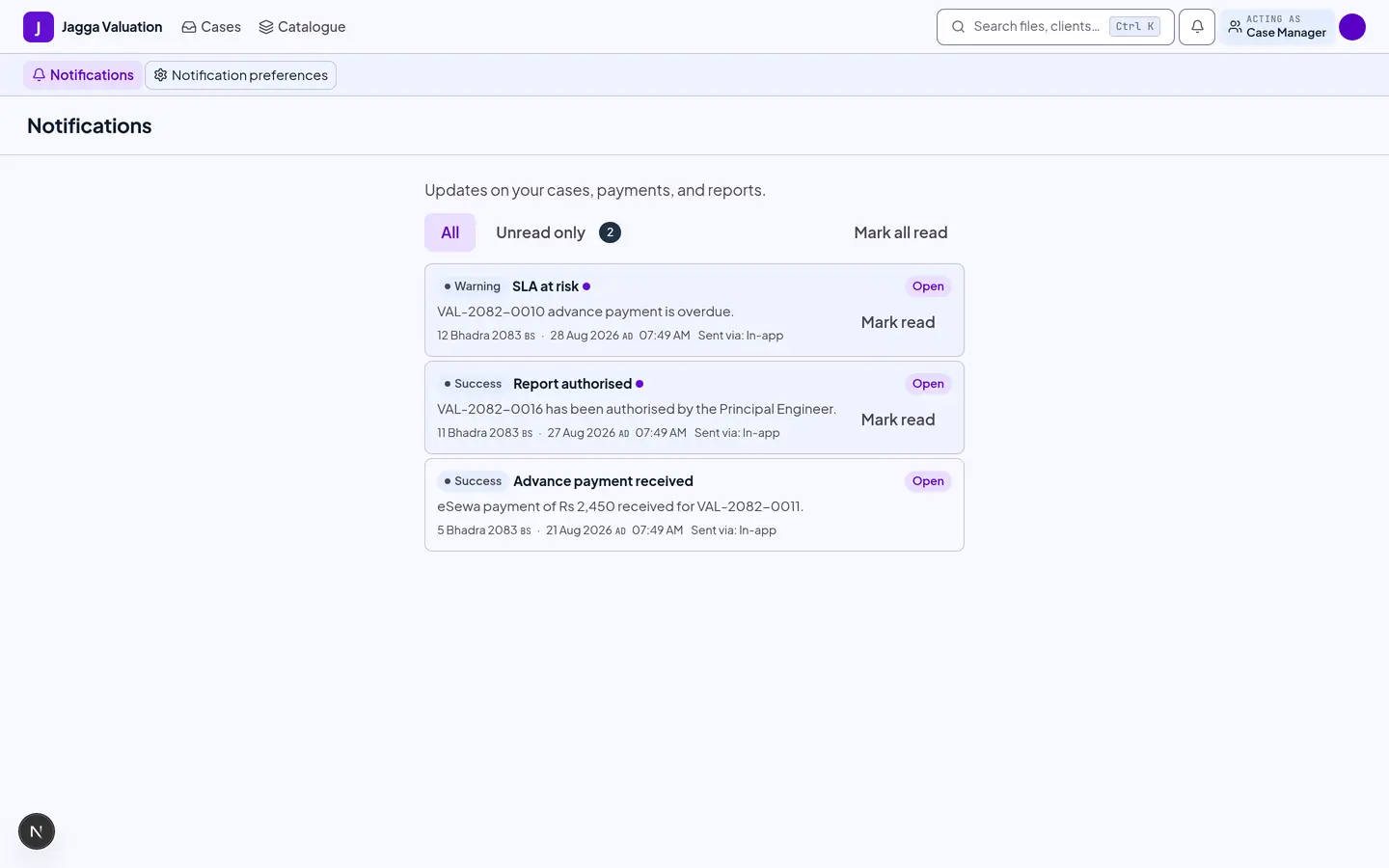
The notification centre lists everything needing your attention: new leads, payments, service-level warnings, authorisations.
5. Tags — organise your queue
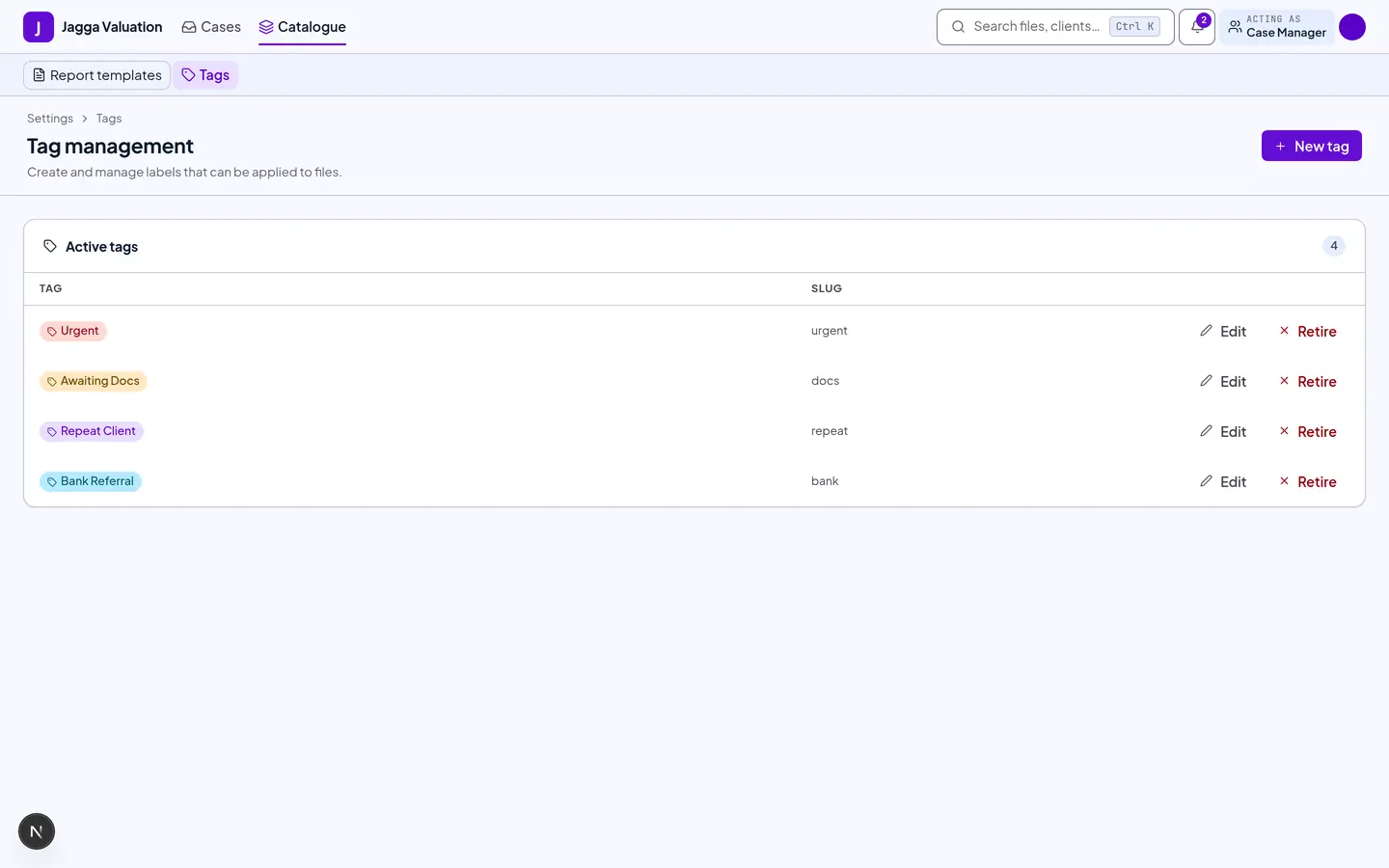
Create and manage tags for your firm — Urgent, Awaiting Docs, Bank Referral — and apply them to cases to slice your queue.
Tips and gotchas
- You are the client’s only voice. Technical staff cannot message the client, so relay on their behalf.
- A retry never double-charges. If a payment looks like it did not save, retry it safely — the server recognises the repeat, so a client is never recorded as paying twice.
- Quoting below the floor needs someone else’s approval. A quote under the service’s price floor has to be approved by an administrator before the client can accept it — and it must be a different person from you, even if one person happens to hold both roles.
- Re-quoting after acceptance needs a reason. Once a client has accepted a quotation, replacing it means choosing a reason from a fixed list and getting the client to accept again. It is not a silent edit.
- Service-level chips are advice, not penalties. A red chip is a prompt for a human to look, never an automatic consequence.
Last reviewed 2026-09-08.