Tenant Admin
Who you are
You own the whole firm and every consultancy under it. You configure the service catalogue, pricing and fees, approve staff, set branding, configure commission and the money rules, and you can see every case in the firm.
What you can do
- See every case in the firm, regardless of consultancy or assignment.
- Configure services and pricing, staff and approvals, branding, commission, settings and service levels, the depreciation table, and manage consultancies.
- Read the append-only audit log and firm analytics.
- Grant and revoke roles for any user in the firm.
- Record an engineer’s signing credential, and reassign a file to another credentialed engineer when one is unavailable.
What you can’t do
- You can’t onboard or offboard the firm itself, or change platform-level pricing — that is the Platform Admin.
- You can’t sign a report. You record an engineer’s credential, but you never sign in their place. See the callout below.
When a Principal Engineer is unavailable, the fallback is to reassign the file to another engineer who holds a valid signing credential. An administrator never signs a report. A signature is tied to a named engineer’s council registration, and the issued report prints that engineer’s name and number — so there is nothing for an administrator to sign with.
Getting in
Sign in at /login. Your acting role — Tenant Administrator — shows in the top-left.
The Administration console is reached from the sidebar. It has one sub-navigation across the top: Services and Pricing, Depreciation, Consultancies, Staff and Approvals, Branding, Commission, Audit Log, Analytics, Settings.
Your screens, step by step
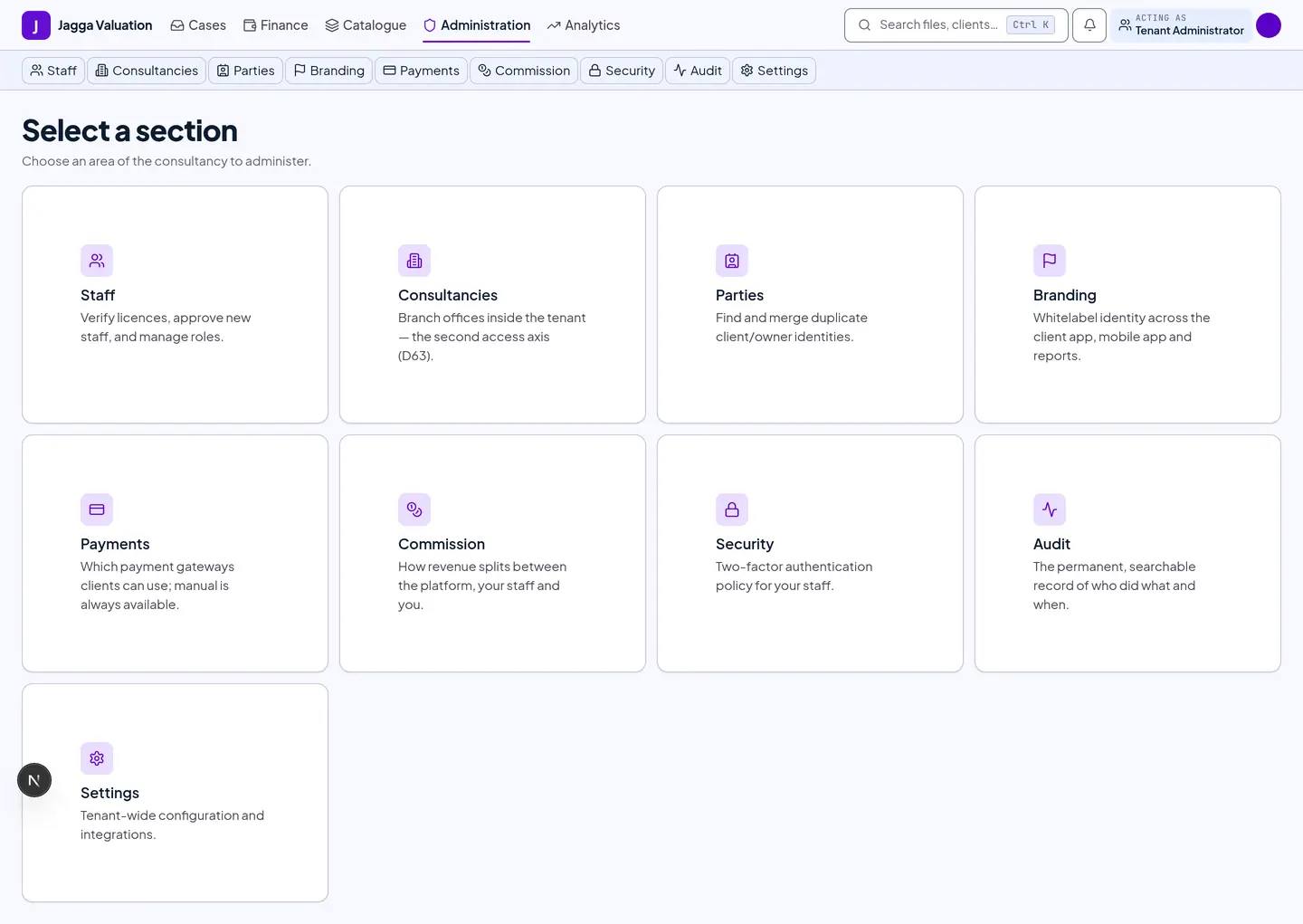
1. Administration home
2. Services and Pricing
Configure the catalogue your clients see — switch services on or off, set the base price, the field fee, the commission split and the expected turnaround, plus pricing rules and exceptions.
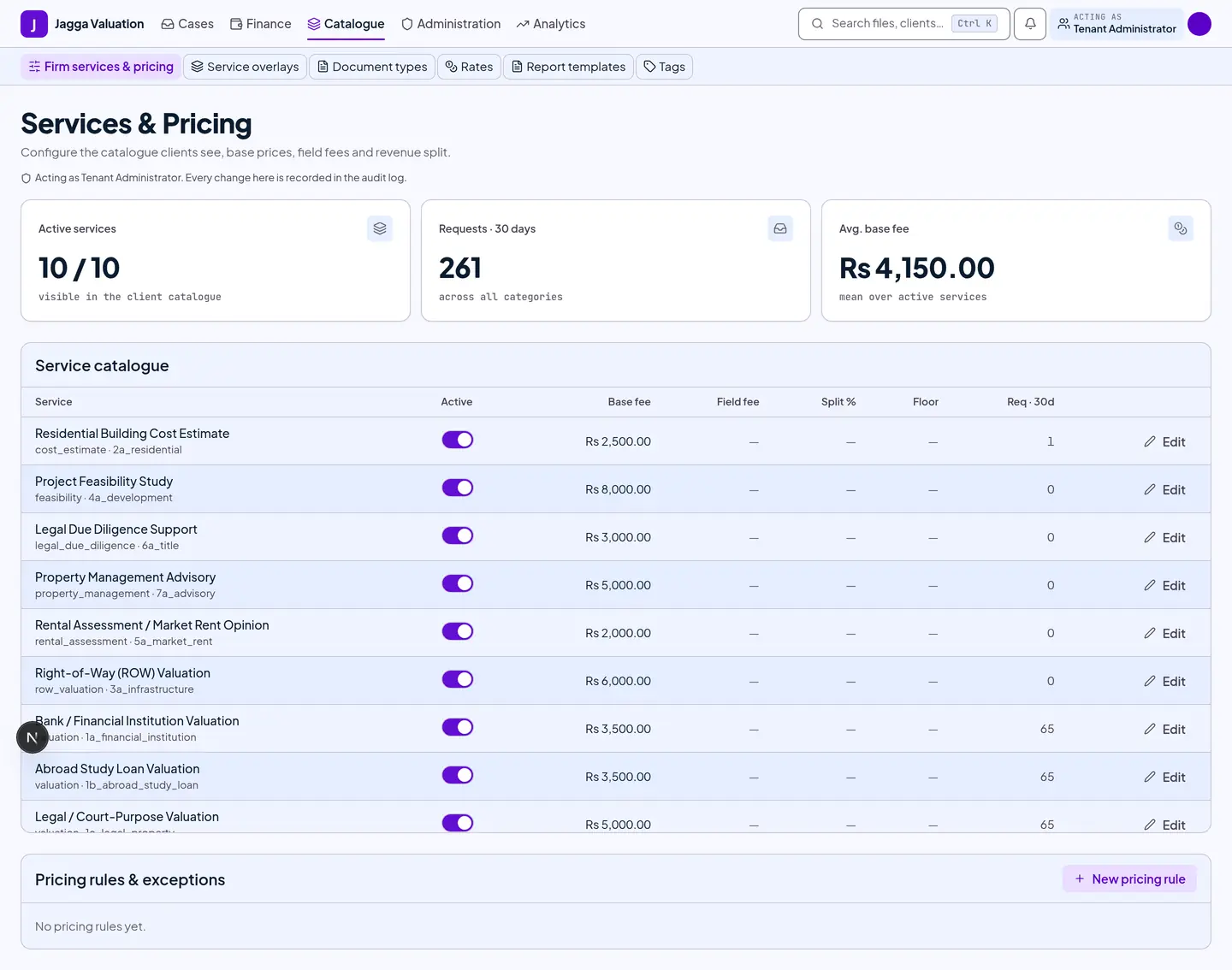
The strip at the top shows active services, recent requests and the average base fee. Every change is recorded in the audit log.
3. Staff and Approvals
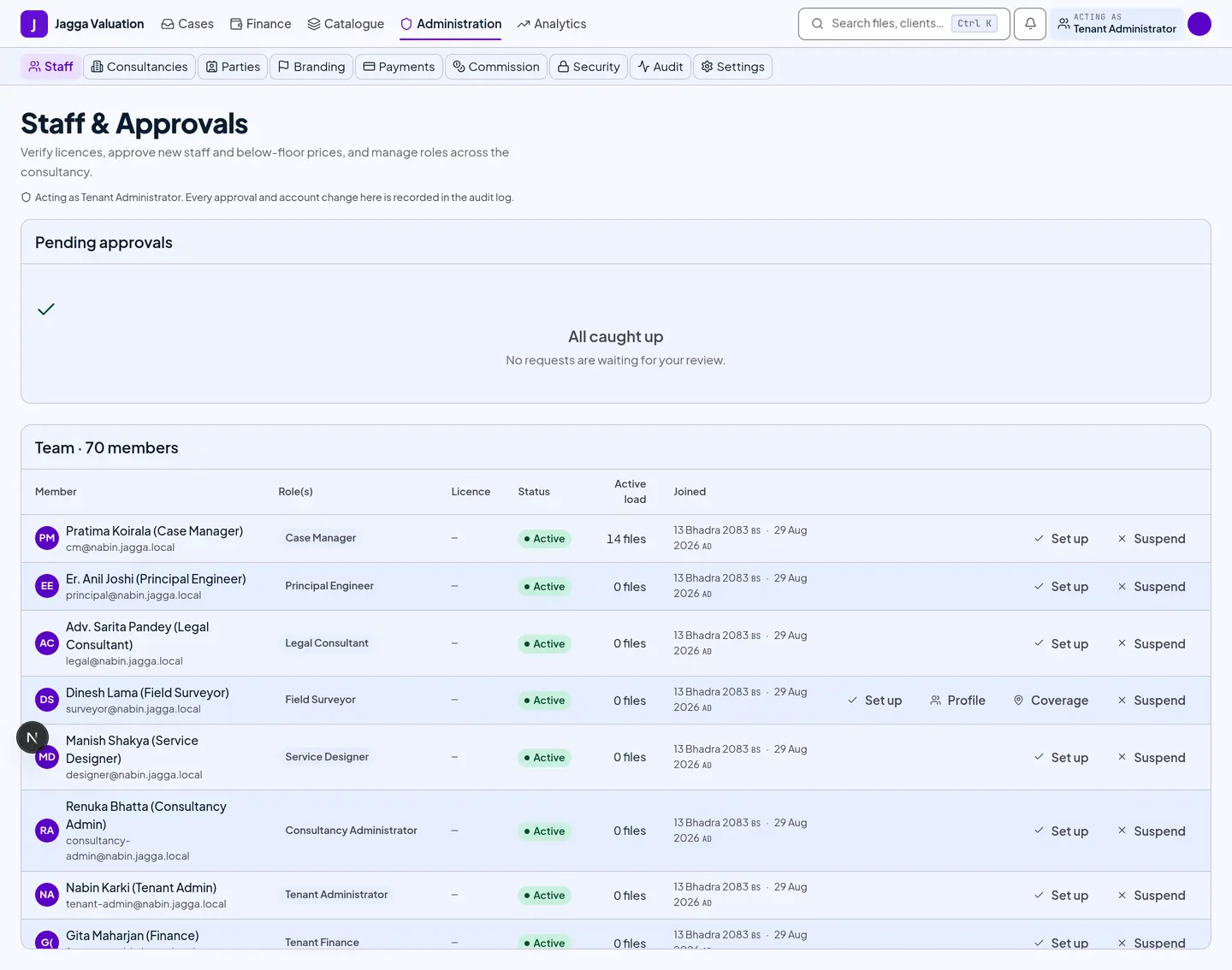
Your staff roster and the approvals queue. New staff applications land here for you to approve or reject. This is also where you record a Principal Engineer’s signing credential — registration number, category and expiry — without which they cannot authorise a report.
4. Branding
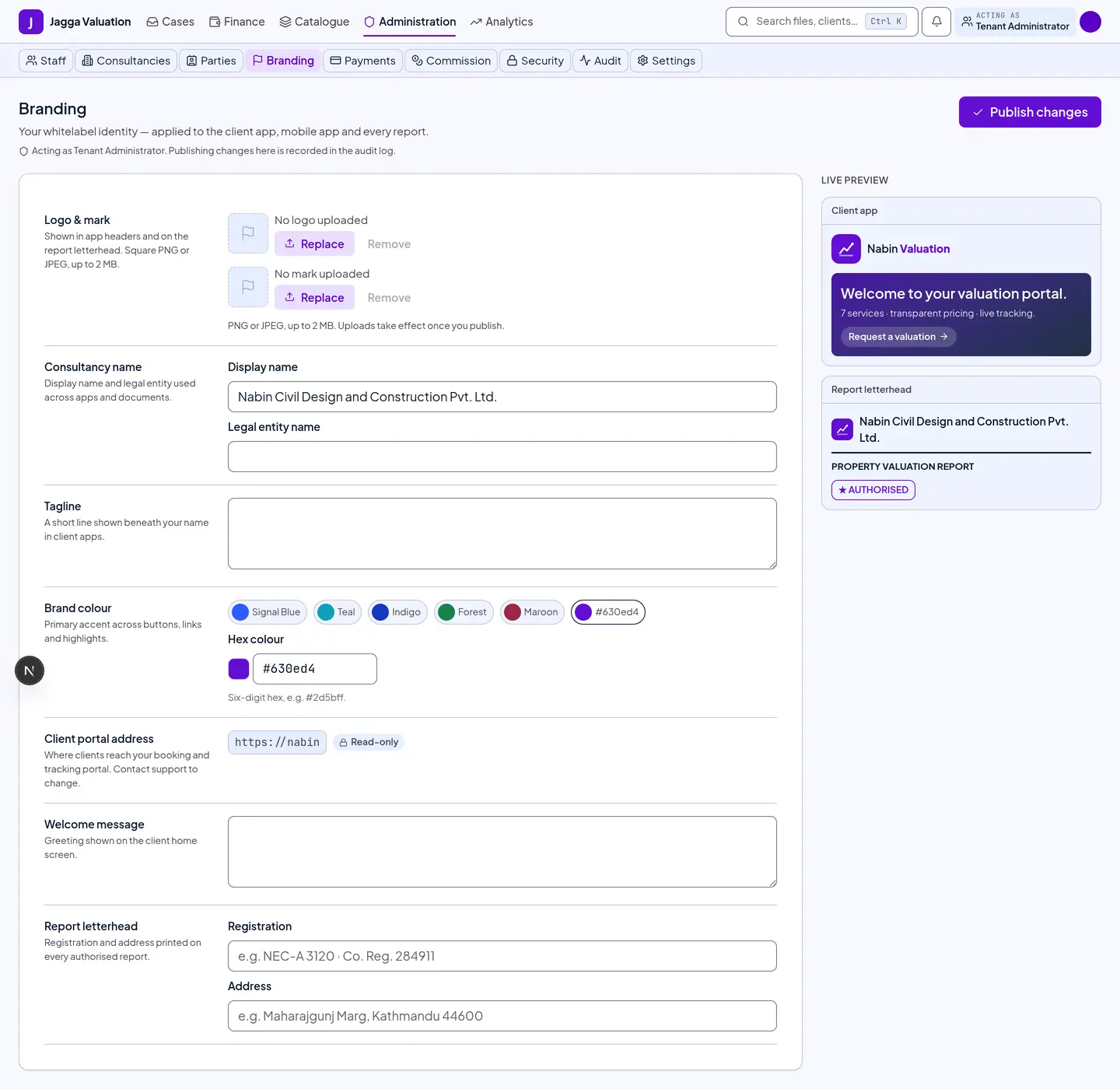
White-label the firm: legal name, tagline, logo and accent colour. The accent is contrast-checked, so a colour that would make text unreadable is refused.
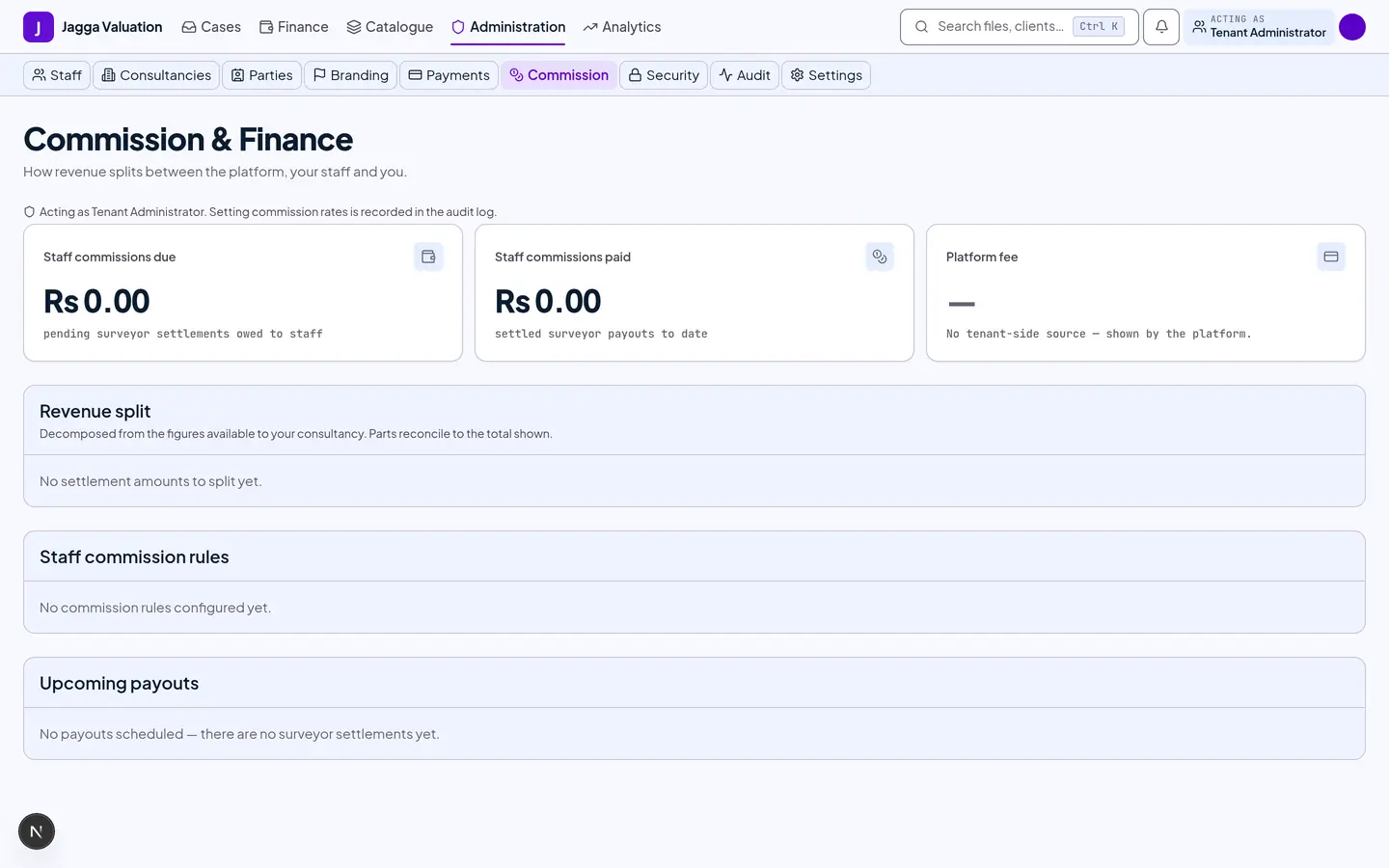
5. Commission
Set the commission model — gross, the platform fee, and the per-role commission rules — and review payouts.
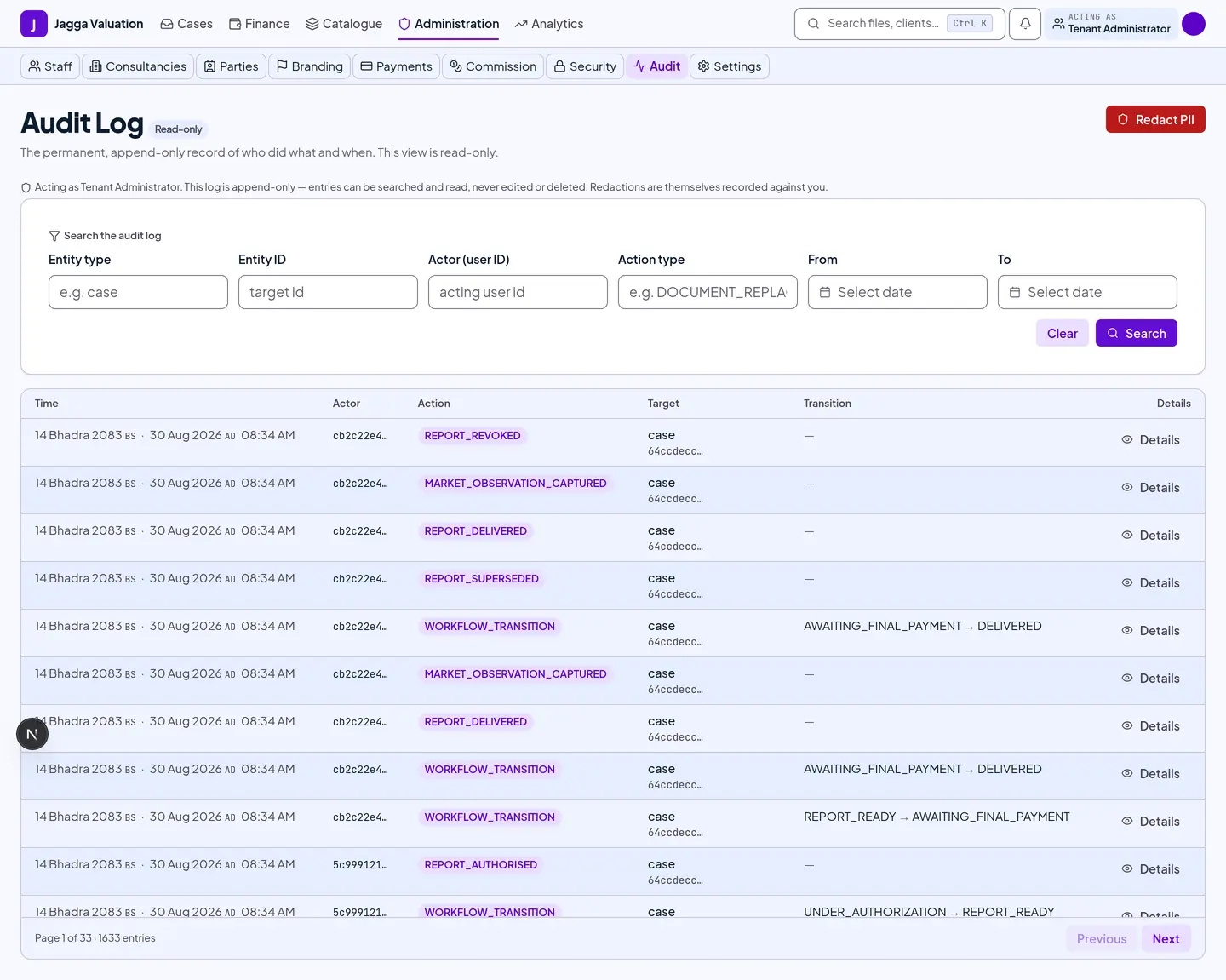
6. Audit Log
The append-only record of every consequential action. Entries are never edited or deleted. Redacting personal data is itself a new logged event, not an erasure.
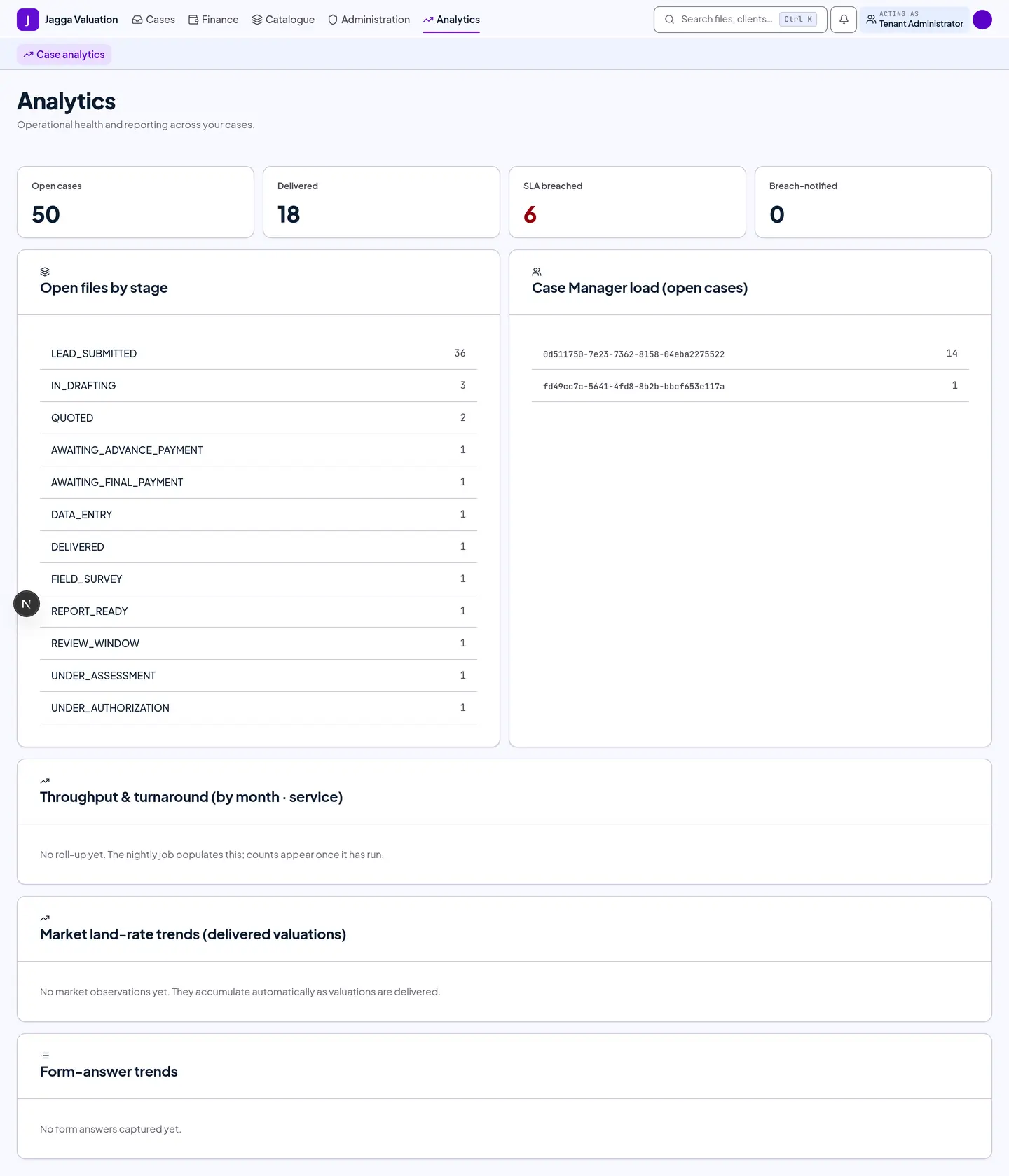
7. Analytics
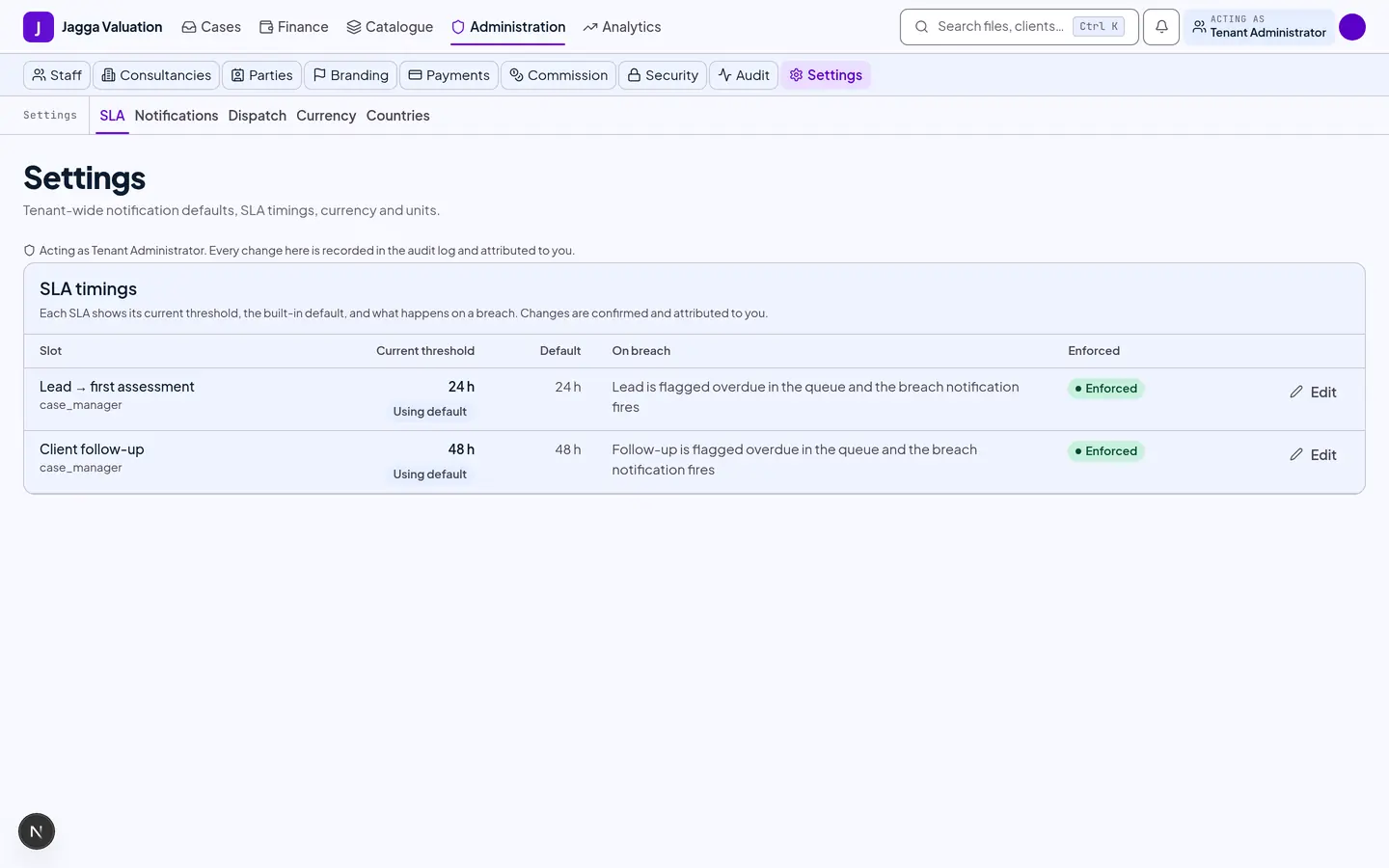
8. Settings
Notification defaults, service-level timings and other firm-wide settings.
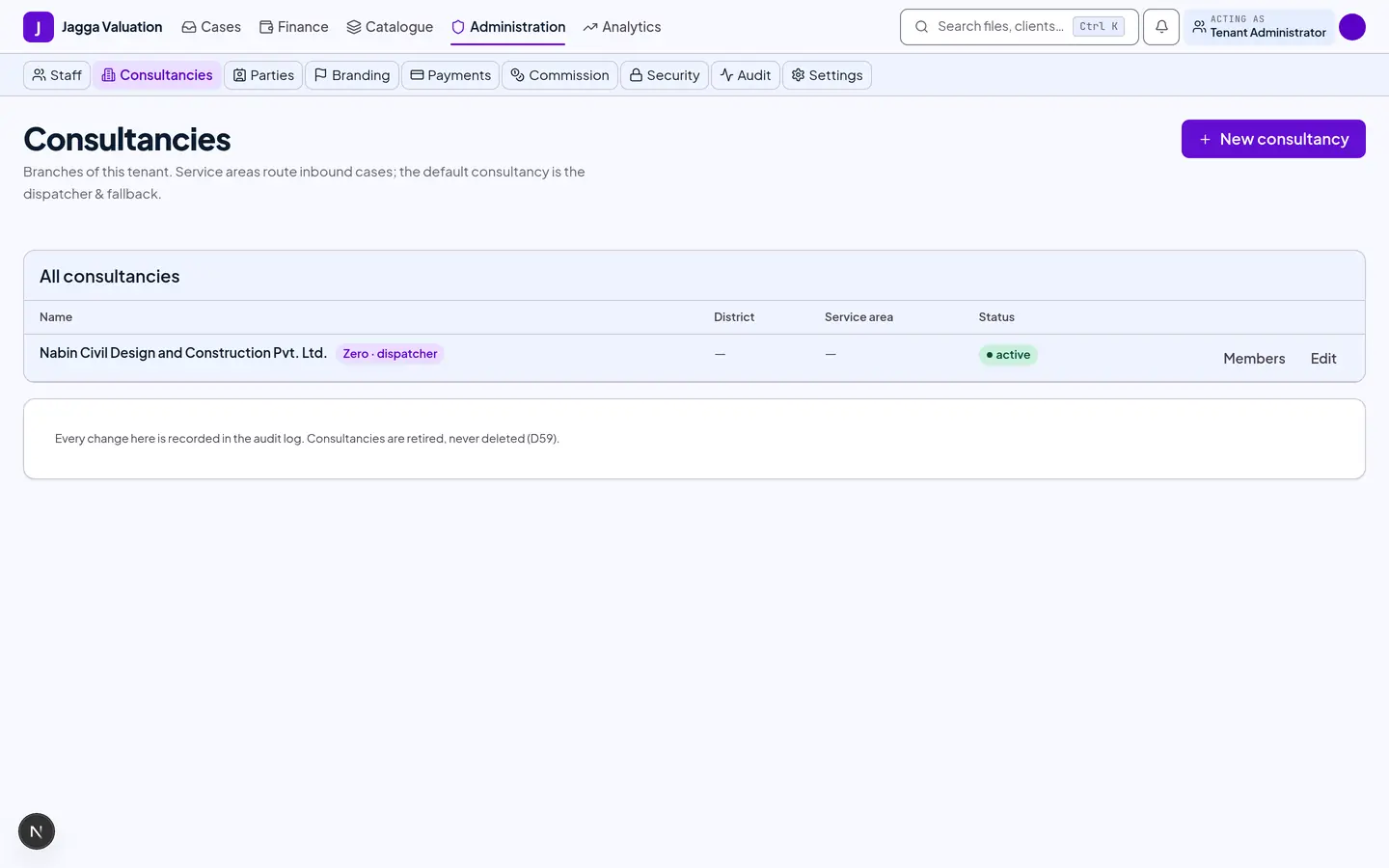
9. Consultancies
Manage the consultancy offices under your firm — their service areas and status.
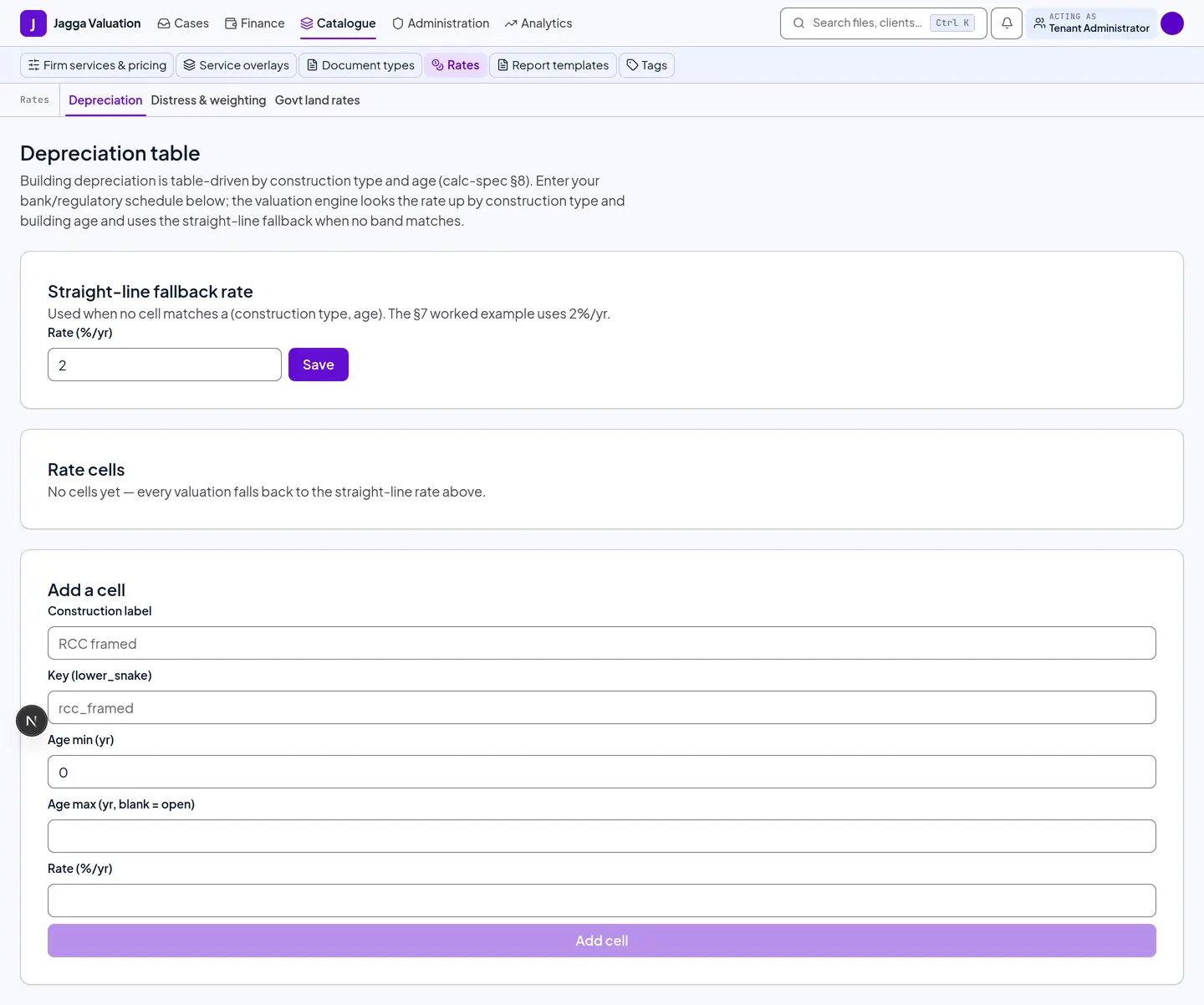
10. Depreciation
The firm-wide depreciation table the valuation engine reads. You share this table with your Principal Engineer — it is one table, seen from two roles.
Other screens in Administration
The console holds more than the ten screens above. These have no walkthrough yet, but you will find them in the sub-navigation:
- Service overlays — your firm’s own adjustments on top of a platform service.
- Government rates and Land rates — the rate figures a valuation reads.
- Distress — the forced-sale percentages.
- Document types — the registry the document checklists draw from.
- Parties — people on a file who are not account holders.
- Security and Signing — sign-in policy, and who is allowed to sign.
- Per-staff pages — profile, availability, onboarding and service areas for one member of staff.
Tips and gotchas
- Configuration is data, not code. Services, pricing, forms, report formats and service levels are all editable here. You never need a developer to change a checklist or a rate.
- The audit log is permanent. You can read it, and you can redact personal data by adding a new event — but nobody, including you, can edit or delete an entry.
- Your firm is decided at sign-in. Which firm you are working in comes from your own login, never from anything a client could set.
- A configuration change reaches new files only. A file locks onto the report format and workflow versions that were live when it started, so work in progress is never re-plumbed underneath the engineer holding it.
Last reviewed 2026-09-08.