Client
Who you are
You are the customer — a person or an organisation asking for a valuation or a related service, for a bank loan, a court matter, a sale, a study-abroad application, and so on. You can register yourself or be set up by a Case Manager. You follow your file from request to delivered report, and you can ask for a review after delivery.
What you can do
- Request a service, and give your property and document details.
- Track every file you have requested, against a clear status track.
- Message your Case Manager, and get notified as your file moves along.
- Pay online, or be recorded as paying by transfer or cash.
- Download your report when it is delivered, and ask for a review within the window.
What you can’t do
- You only ever see your own files — never anyone else’s, and never the consultancy’s internal work lanes.
- You don’t see internal prices or confidential content — only your own quotation, your status, and your report.
- You can’t cancel a file yourself. Ring or message your Case Manager and they will handle it.
- You don’t see which surveyor or engineer worked on your file in the app. Your finished report does name the engineer who signed it, with their council registration number — that is deliberate, because it is what makes the report count.
Getting in
Use the client portal at /portal/login, or the
Jagga mobile app. Your consultancy will give you the web address. Dates are shown
in Bikram Sambat and Gregorian together.
On the web
1. Home — browse and request
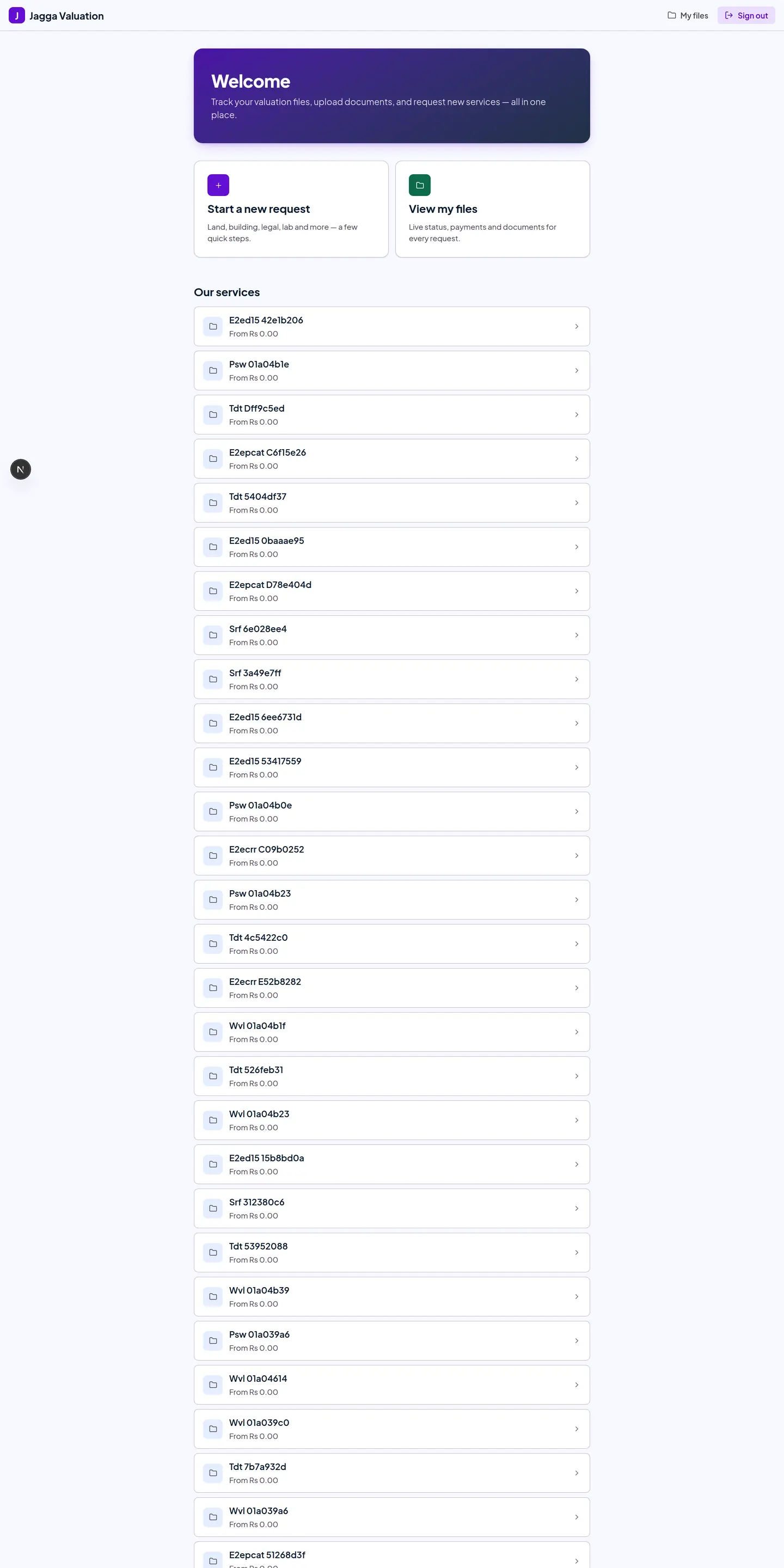
The portal home shows the services on offer, and gives you Request a service and My files.
2. Request a service
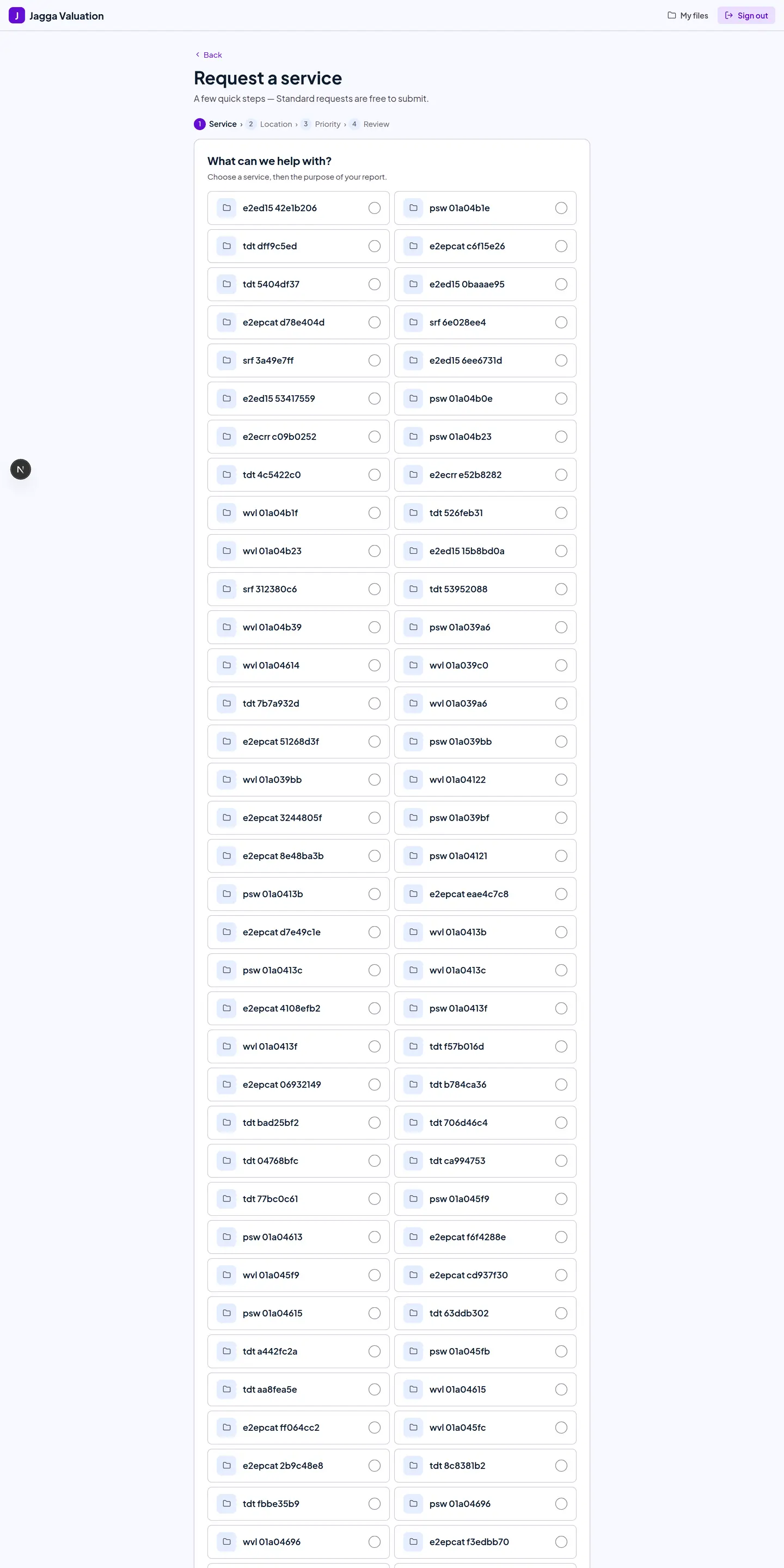
A guided request: pick the service, give the property details and your documents, and schedule the field visit.
3. My files — live status
Every file you have requested, each with its current status.
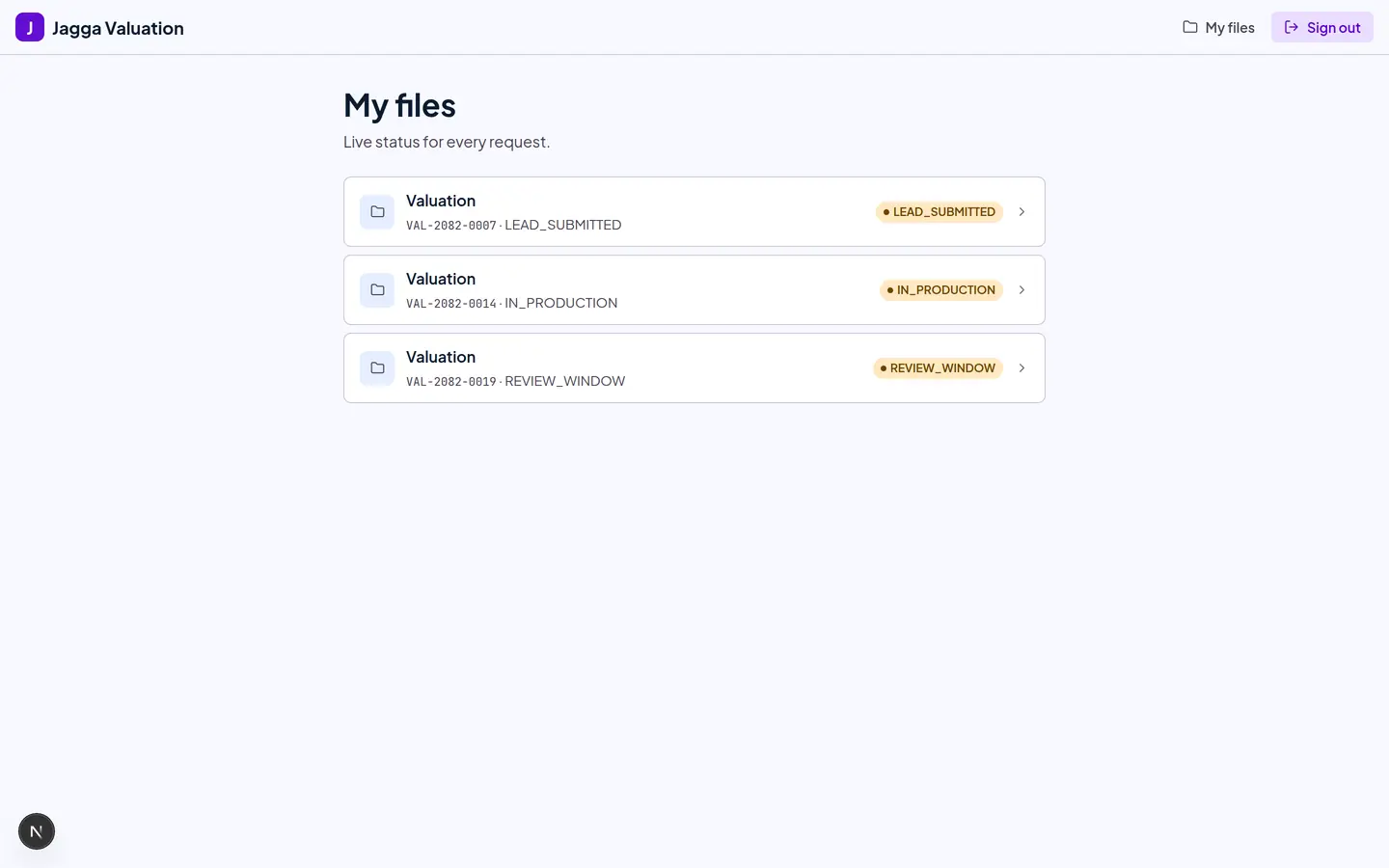
Not sure what a status means? See File statuses.
4. File detail
Open a file to see the owner and property details, your documents, payments, the activity feed, and your message thread with the Case Manager.
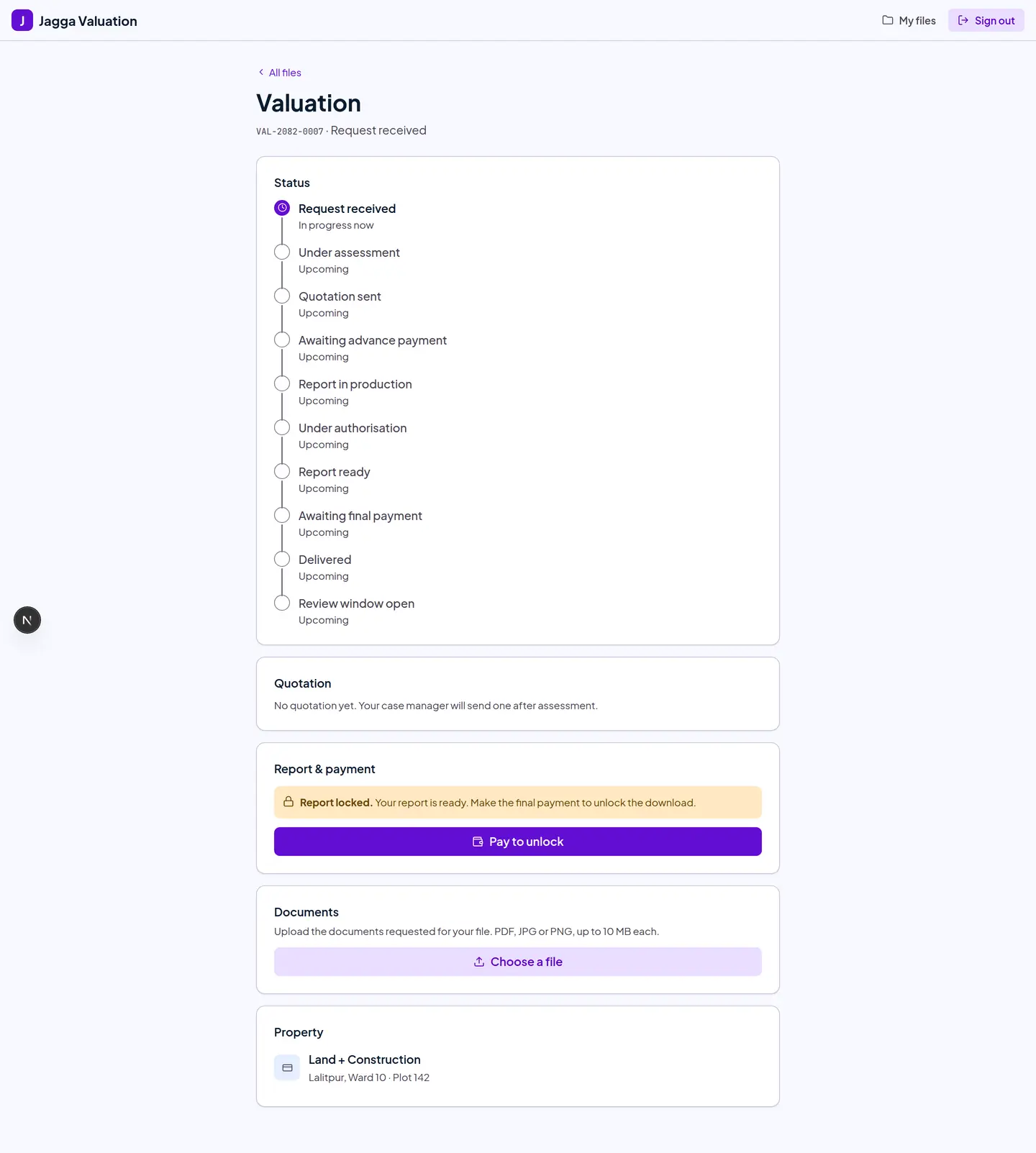
Before the final payment is settled, the report is visibly locked — not hidden. You will see a pay to unlock action and the exact amount due, so there is never any doubt about what is holding it up.
On your phone
The Jagga app lets you track your files and talk to your Case Manager on the go.
Home

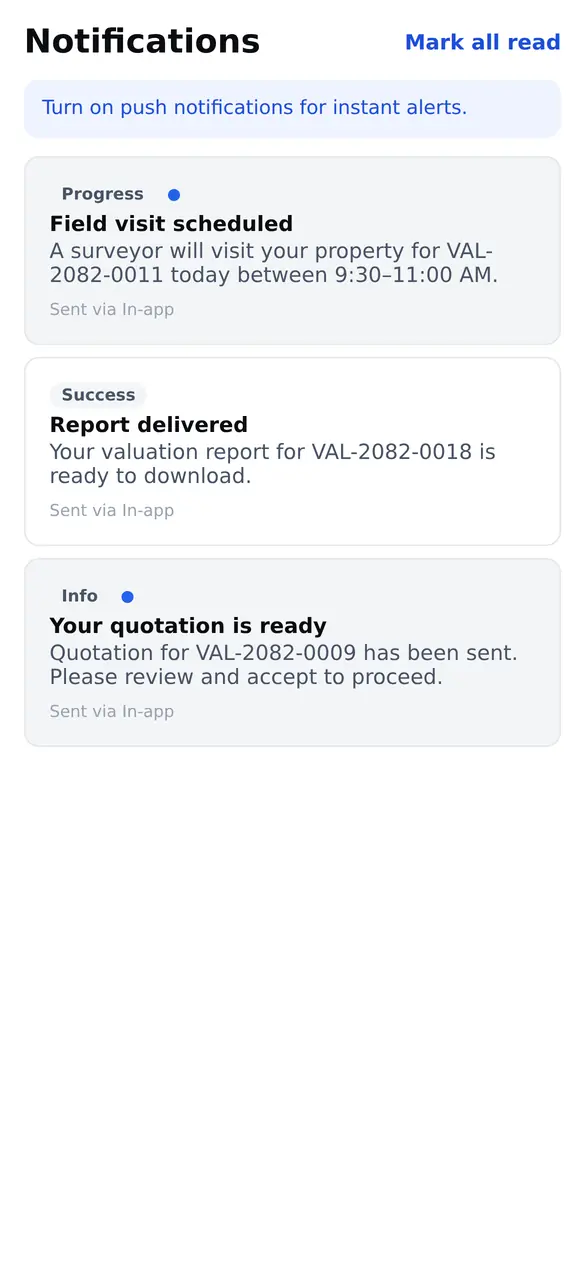
Notifications
Status updates — quotation ready, visit scheduled, report delivered — arrive here.
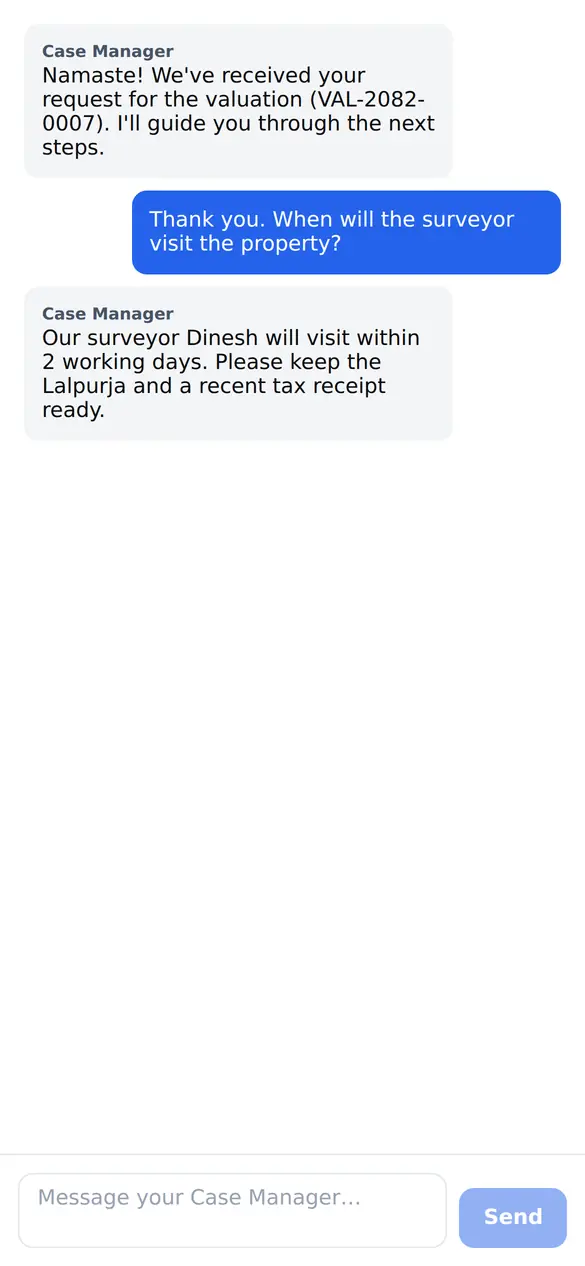
Messages
A direct thread with your Case Manager: ask questions, get guidance on documents and visits.
Also on the phone
Three more things the app does, which do not have a screenshot here yet:
- Track a file — the same status track as the website.
- Request a service — the full request, from your phone.
- Pay — settle a milestone through one of the online payment services.
Tips and gotchas
- Your Case Manager is your single contact. All your questions go to them; they coordinate the engineers and the surveyor behind the scenes.
- Have your documents ready. Usually you will need the land ownership certificate (lalpurja), a recent tax receipt, and the owner’s citizenship document. Your Case Manager will confirm the exact list for your service.
- Status, not internals. You see a clear status for your file. The detailed production lanes stay on the staff side, so you are not reading someone else’s shorthand.
- Reviews after delivery. If something needs correcting after you receive the report, ask for a review within the window rather than starting a new request.
Last reviewed 2026-09-08.